By AskGlyph · September 18, 2026 · 4 min read
Updated October 13, 2026
Edit an existing image and adjust its composition
Choose the image to change, separate local positioning from AI edits, and check the result before exporting.

Measured in AskGlyph web · October 13, 2026
Move a prepared subject without another AI edit
The confirmed bottle image from the measured reference-edit example, after subject preparation in Refine.
- Model or method
- Local Refine composition
- Actual task total
- 0 Credits

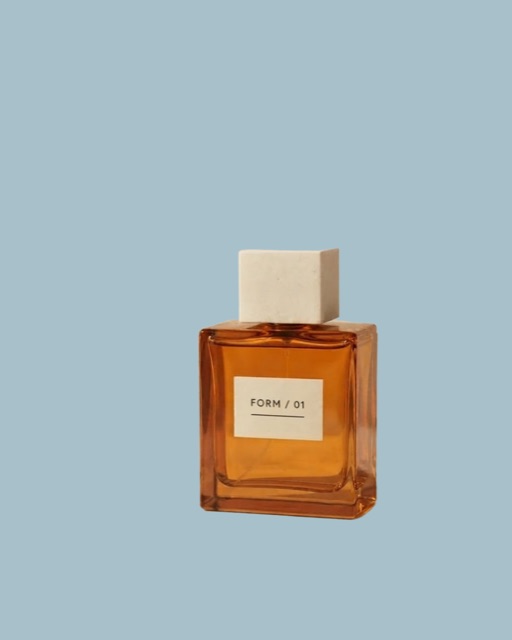
Open Adjustments after subject preparation, set Subject position to -0.20, Subject size to 0.90 and Background to Mist blue.
The bottle moved left and became smaller, leaving more room on the right. The label remains readable. The available Credits balance did not change.
No additional AI Credits for these local adjustments and download. Creating the source image was a separate paid task.
The composite downloaded as a 922 × 1152 PNG with a blue background. The preview below is JPEG; this is not a transparent-background export.
The solid background replaces the source setting and does not recreate its cast shadow. Check extracted edges and composition; AI background reconstruction and written edits are separate paid actions.
Can I change a picture I already have?
Yes. Start from a saved AskGlyph image or upload your own PNG, JPEG or WebP in Refine after signing in. Select that image as the source and describe the change. Your previous result remains available so you can choose it again for another edit.
This suits exploring a different background, lighting direction or visual arrangement. For a horizontal move, scale change or solid background color, use local Refine controls once the subject layer is ready. AI instructions do not provide a guarantee that all unmentioned pixels, a logo or a person's identity will stay unchanged.
Choose the source and one change
Use a clear image that you have permission to upload. Identify the subject, the area for copy and the frame you need to keep. If the creation contains several pictures, select the exact source before using Refine or Edit in chat.
Write keep and change separately. For example: Keep the jar, its color and the existing camera angle. Change the background to a quiet cream surface. Leave space on the left for a headline. This is an illustrative instruction, not a measured example of exact preservation.
Position and scale without a new AI edit
Open Adjustments after subject preparation finishes. Choose Subject position for a horizontal move and Subject size for scale. Choose a solid Background color or an available generated background, then use Composite to inspect the whole arrangement. If subject preparation fails, the original preview and original download remain available.
Turn on Grid to judge alignment and edge clearance. Enlarging the subject can crop it at the frame boundary, so inspect the full image before download. Local position and size changes do not redraw the prepared subject. They also do not recover parts of a subject already missing from the source photograph.
Use AI when the image content needs to change
Select an edit-capable model and submit a short instruction in Refine. Subject or Background makes the intended editing target explicit. Reconstruct background requests an AI-generated background plate; it is not a local fill or an exact restoration of hidden scenery.
Change one visual property at a time, such as warmer light or a different setting. The 3D studio helps communicate lighting direction to an AI edit; it is not a precise photographic simulator. Check the output for altered faces, product details, shadows and text before accepting it.
Keep the frame and compare your versions
Refine keeps the source's original ratio. Return to Fit image when judging the complete composition, and compare at the same display size. Check the subject center, empty area for copy, edges, horizon and any visible text. Inspect the downloaded dimensions rather than assuming a chosen proportion is an exact delivery size.
Continue in the same creation and select the result you want the next request to use. If an edit drifts, choose the earlier source rather than trying to repair every changed detail in another instruction. Save composite stores a new conversation version where that action is available; downloading only saves the file to your device.
Check the budget and download the right file
AI generation and edits require sign-in, an active plan or granted access, and available Credits. Paid Web plans start at $19.99 USD per month; this is a subscription price, not the price of one finished image. Open Pricing to estimate the selected model, completed images, edit rounds and assumed text usage. Local Refine position, size and background-color adjustments do not call an image model.
An AI edit adds completed-image and text usage charges. Check the selected model's operation price before sending and the turn’s total Credits in image details afterward. Plan & credits shows usage and credit history. In the Pricing calculator, choose Edit a reference image as the first action, then add the further edit rounds you plan to try. Its total is a planning estimate, not a measured task cost.
Download original image saves the selected saved file in its existing format. Download refined image exports the current composite as PNG with its background, including local position and scale changes. It does not export transparent subject pixels, an editable layer stack or a vector file. The illustration on this guide is curated inspiration, not a verified before-and-after editing record.
Edit an existing image
- Bring
- Your existing image, one change, and the details to keep.
- Check before using
- Review the source and result at the same size; return to an earlier image if details drift.
This starter fills your brief and requests generation proportions; check the model supports them. Edit it and attach your reference before sending. Reference edits keep the source frame; opening the starter does not start generation.
Cloud AI requires sign-in, an active plan or granted access, and Credits. Plans start at $19.99 USD/month. The budget calculator is an estimate; your task's actual cost depends on completed images, text work and edit rounds.