By AskGlyph · September 18, 2026 · 4 min read
Updated October 13, 2026
Create product marketing images from a reference photo
Bring your product photo, explore a marketing setting, check the details that matter, and download the version you accept.
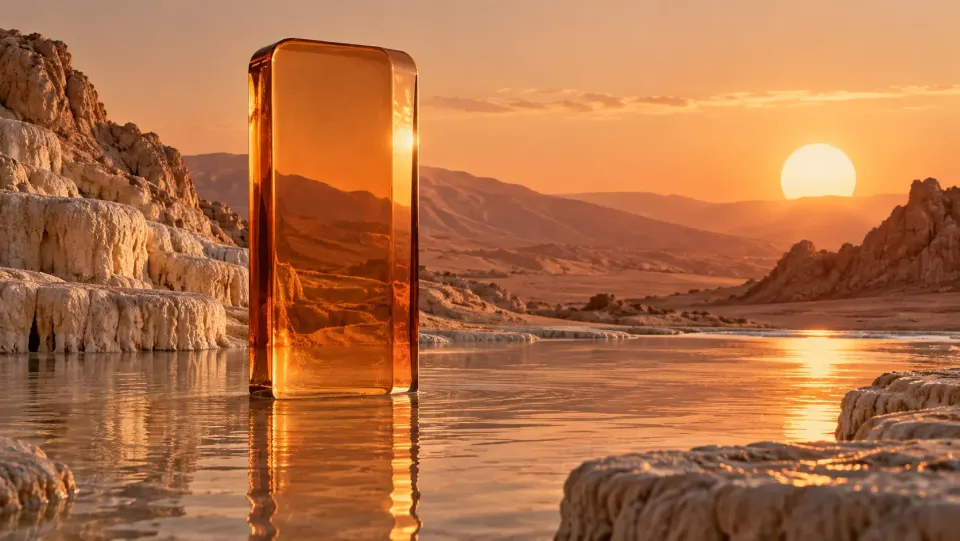
Measured in AskGlyph web · October 13, 2026
A product setting, then a label correction
Our curated amber-bottle illustration, uploaded as a reference. It is not a photograph of verified physical inventory.
- Model or method
- Nano Banana 2 Lite
- Actual task total
- 80 Credits
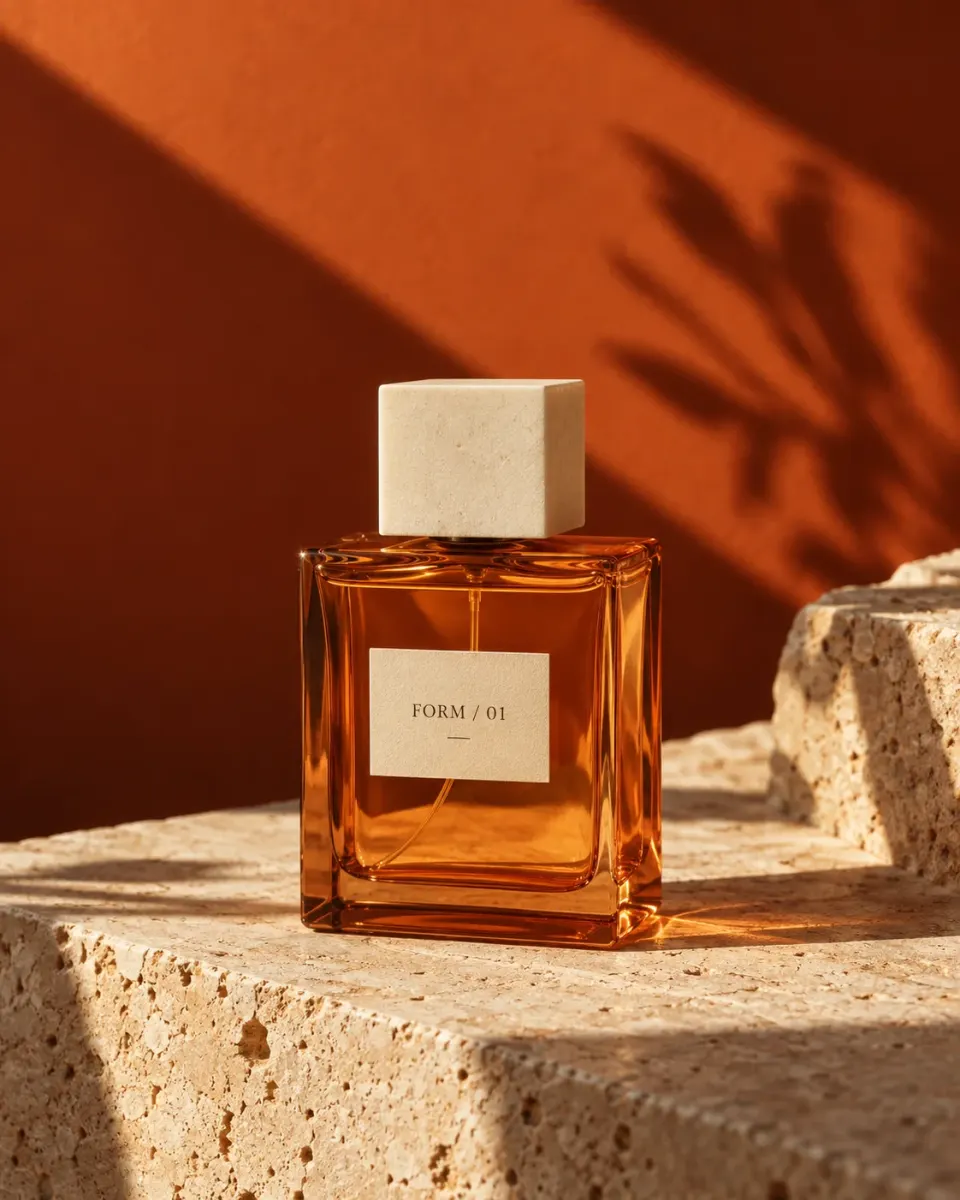
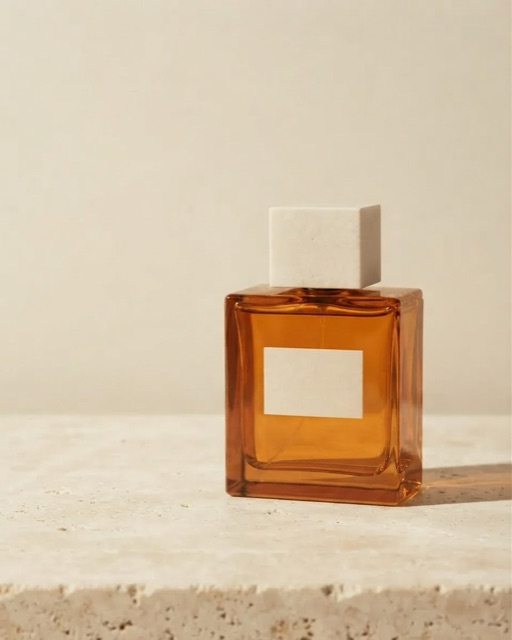
Change the setting to pale limestone, warm side light and a cream background with copy space.
The setting and copy space changed, but the original label text disappeared. The initial no-lettering instruction was ambiguous about existing text.
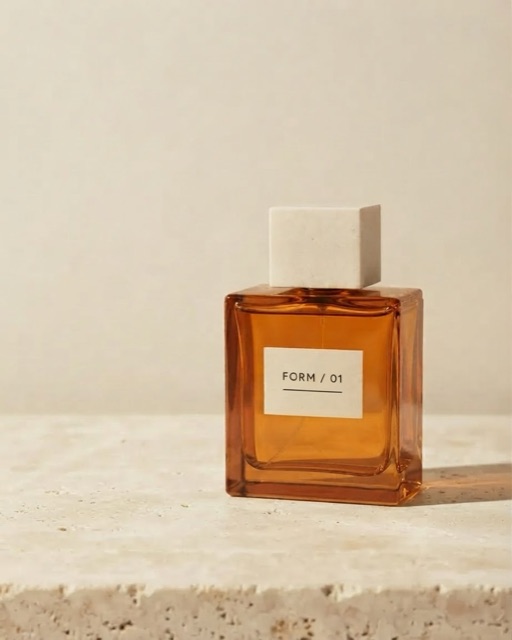
Change only the blank label: restore FORM / 01 with a thin line underneath.
The downloaded result has readable FORM / 01 text. Its typography differs from the original reference, so it still needs a product and brand review.
Two completed reference edits, 40 Credits each. The account's settled credit history and usage included text work, as well as the images.
Both outputs downloaded as 922 × 1152 JPEG files. The images below are smaller previews.
This run shows why references need inspection and narrow follow-up instructions. It does not establish exact packaging preservation, identical pixels or a typical task cost.
Can I turn a product photo into a marketing visual?
Yes. In AskGlyph Create, attach a product photograph and describe the setting, light and composition you want. An edit-capable image model can propose a new marketing image, and you can keep working from a selected result in the same creation.
This suits exploring a campaign direction or a background for a product ad. It needs a review against your real product before publication. A generated edit is unsuitable when the requirement is guaranteed unchanged packaging, exact logo pixels, verified label text or consistent results across a batch of products.
Prepare the photo and the brief
Use a sharp PNG, JPEG or WebP photograph that you own or have permission to upload and use. Keep the complete product visible, including its cap, edges and label. Remove unrelated private information. A text-only request invents a product; it does not record the item you sell.
State the intended placement, such as a social ad or website banner. List the details to keep: silhouette, proportions, materials, colors and label placement. Then name the change: a pale stone setting, soft side light, or quiet space on the left for copy. Give the frame one main job.
Start with the reference, then make one request
Open Create, sign in, attach your photo and choose a model that supports editing. Check its reference-image limit and displayed Credits per edited image. Editing starts from the reference frame; the proportions selector is for generating without a reference. Choose a reference whose crop is useful for your intended placement.
Try this brief: Use my attached amber perfume bottle as the product reference. Keep its silhouette, cap, glass color and label placement. Change the setting to pale limestone with warm light from the left. Leave the upper-left area quiet for copy. Add no extra products, hands or lettering. These are instructions to check in the result, not a promise that the model will preserve every detail.
Compare the result before the next edit
Inspect the first image at full size beside your photo. Check bottle proportions, cap geometry, reflections, edges and every label character. Reject a changed product detail or invented claim even if the setting looks attractive.
Select the image you want to edit, then use Edit in chat or Refine. For example: Keep this composition and product appearance. Soften the shadow and make the background a muted cream. Check what changed and what stayed after each turn. If required details drift, select the original or an earlier result as the next source and narrow the request.
Use local composition controls when they fit
In Refine, wait for a separate subject layer to be prepared, then open Adjustments. Subject position moves the product horizontally, Subject size changes its scale, and Background selects a solid color or an available generated background. Use Composite to inspect the arrangement. Check the extracted edges and whether a larger product is clipped.
These controls compose the prepared subject without asking an image model to redraw it. Reconstruct background and a written AI refinement are different operations: they use the cloud model and Credits. The 3D studio helps describe lighting direction; it does not guarantee exact relighting of the product photograph.
Budget and export the accepted version
AI generation and edits require sign-in, an active plan or granted access, and available Credits. Paid Web plans start at $19.99 USD per month; this is a subscription price, not the price of one finished image. Open Pricing to estimate the selected model, completed images, edit rounds and assumed text usage. Local Refine position, size and background-color adjustments do not call an image model.
For this reference-photo task, count an initial edit plus the further edit rounds you plan to try. Each completed image adds its model charge, and text work is separate. A later failure does not erase an already completed image's charge. Open image details for the turn’s total Credits, including all its outputs; use Plan & credits for usage and credit history. The calculator is an estimate, not a measured campaign cost.
Download preserves the selected saved image's format. Download refined image exports the current Refine composite as a PNG with its selected background; it is not a transparent-subject or editable-layer export. Check the downloaded dimensions, crop, edges and label text. Add exact final copy or logos in your design tool when necessary. The guide artwork and example brief are illustrative, not a measured reference-to-output case.
Product marketing images
- Bring
- A product photo you can use, a setting, and the details to preserve.
- Check before using
- Compare the shape, color, packaging and every label character with your reference.
This starter fills your brief and requests generation proportions; check the model supports them. Edit it and attach your reference before sending. Reference edits keep the source frame; opening the starter does not start generation.
Cloud AI requires sign-in, an active plan or granted access, and Credits. Plans start at $19.99 USD/month. The budget calculator is an estimate; your task's actual cost depends on completed images, text work and edit rounds.